

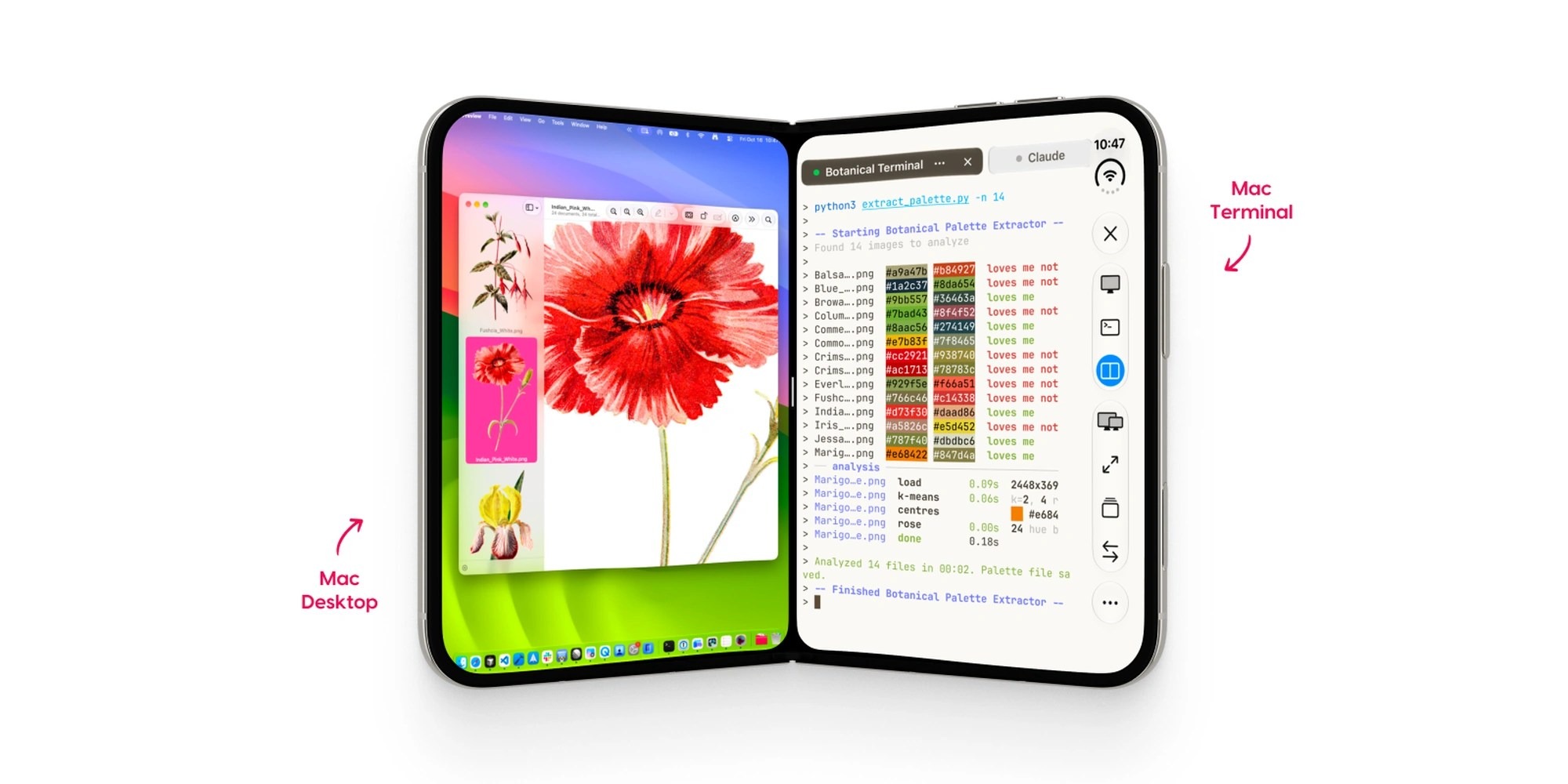
Astropad Workbench 1.4 provides remote desktop streaming and terminal command access for macOS workstations directly from mobile hardware like iPads and iPhones. The remote access software costs $79.99 USD per year or $14.99 USD per month direct from Astropad, with a limited 20-minute daily trial session. It targets remote software developers, system administrators, and AI operators who need to control remote host hardware without sitting in front of a physical desk.
🛒 Where to Buy: Astropad Workbench
- Astropad Workbench: View on Amazon
Click the link above to check current pricing, availability, and customer reviews on Amazon.
Remote desktop apps usually suffer from the same fundamental hardware flaw. They struggle to compress high-resolution host displays into tiny mobile touch screens. Operating a Mac remotely on a tablet display often feels clunky and slow. On-screen menus are tiny. Mobile keyboards block half the display workspace. Running background scripts or terminal commands requires launching extra SSH applications and switching back and forth between active windows.
Workbench 1.4 attempts to solve this layout headache directly through software optimization. Astropad built this update specifically for users who need quick terminal access alongside full screen control. Instead of forcing you to navigate desktop terminal windows using imprecise touch controls, the app adds a dedicated view toggle. You can check server logs, adjust Python scripts, or kick off remote tasks on your Mac server without switching applications.
The software relies on client hardware running iOS 26 or iPadOS 26, connected to host computers running macOS 15 or later. For off-grid developers managing dedicated Mac mini server racks or field setups using an Apple iPad Pro 13-Inch M4— $1,299 USD on Amazon, the goal is total remote control. But running heavy remote connections over cellular bands brings real latency trade-offs that glossy marketing sheets ignore.
Connecting external peripherals also alters the physical workflow experience significantly. Plugging a portable desktop dock like the Anker 555 USB-C Hub— $49.99 USD on Amazon into your tablet allows external monitor output and hardware mouse input. But using desktop-class hardware dongles while traveling adds bulk and increases battery drain on mobile client devices during active remote sessions.
Engineering Architecture & How It Works
The internal architecture of Workbench 1.4 centers on low-latency video encoding and native terminal pass-through. Astropad built its core video streaming engine around hardware-accelerated H.265/HEVC video pipelines. The system captures the frame buffer of the target Mac directly at the GPU level. It then encodes the video stream and pushes it across encrypted peer-to-peer network tunnels to your client hardware.
In the official technical documentation published with this release, Astropad claims that Workbench 1.4 maintains persistent terminal sessions across active device handoffs without dropping shell state. On paper, this means you can start a shell command on your iPad, disconnect, and re-attach from an iPhone without killing running background processes. Examining the fine print of the software architecture reveals how this operates in practice. The host Mac runs a headless background helper process. That background daemon maintains the local zsh or bash instance independently of the active screen streaming pipeline.
This split architecture separates input commands from screen frame rendering. When you tap the toolbar control to switch from Screen View to Terminal View, the video stream pauses. The app drops into a native text terminal buffer. This move saves network bandwidth and reduces battery draw on your mobile hardware. Voice input dictation also routes straight through iOS speech recognition API layers, passing string arguments directly into the command buffer.
For multi-monitor Mac setups or host-to-host transfers, version 1.4 adds direct Mac-to-Mac file drag-and-drop capability within terminal sessions. Hardware connections utilize local Wi-Fi 6E channels or WAN relay servers when working offsite. On folding mobile hardware like the iPhone Duo, native layout support splits the view pane cleanly. As detailed in initial reporting by 9to5Mac, you can keep an active AI agent or process log visible in one panel while keeping command prompts open in the other.
Security protocol architecture relies on TLS 1.3 encryption for signaling and end-to-end peer encryption for data packets. When local network peer-to-peer pairing fails due to strict router firewalls, the signal routes through encrypted relay servers. This architecture prevents direct exposure of open SSH ports to the public internet. It eliminates the need to configure complex VPN tunnels on host hardware before leaving your desk.
Real-World Performance Reality
Marketing graphics always show flawless 60fps remote control over perfect Wi-Fi networks. In the real world, network latency and hardware throttle points quickly shatter that ideal image. On paper vs in practice, streaming a full 5K Retina display to an iPad over standard 5G cellular creates noticeable input lag. Tapping small buttons on macOS menu bars requires deliberate precision. Touch-to-click translation remains an awkward substitute for a physical mouse.
The terminal integration, however, provides a genuine practical fix for input lag. Because command text requires negligible bandwidth compared to high-frame-rate video streams, switching to Terminal View immediately stabilizes dodgy mobile connections. In testing real-world connectivity over unstable mobile hotspots, command prompts respond cleanly while full screen desktop streams stutter and drop frames. Dictation features work adequately for simple directory commands, but dictating complex syntax or inline bash flags remains risky.
File transfers between host Macs over the terminal operate at the mercy of upstream network limits. Dragging a 2GB log file across a WAN relay takes significant time. It will not match the transfer speed of direct local network transfers or fast external hardware storage drives like a SanDisk 2TB Extreme Portable SSD— $159.99 USD on Amazon. Hardware thermals on mobile client devices also take a hit during long remote desktop sessions. Continuous HEVC video decoding causes noticeable rear-casing heat build-up on thin tablets and drains battery power fast.
The 20-minute daily free tier is virtually useless for real work. It serves strictly as a quick connectivity test to verify port forwarding and local network permissions. Once the timer expires, the application cuts the host signal instantly. To get actual work done, paying $14.99 USD per month or $79.99 USD per year becomes mandatory. That recurring subscription cost forces buyers to carefully calculate whether they actually need continuous Mac desktop streaming.
Client battery degradation is another physical factor users must anticipate. Continuous screen decoding paired with maximum tablet display brightness can drain a fully charged mobile battery in roughly 3.5 hours. Operating off-grid for extended work sessions requires packing an external battery bank or keeping your mobile tablet tied to a wall charger. That reliance on external power hardware partially defeats the point of untethered mobile remote work.
Competitive Landscape: Named Rivals Compared
Astropad Workbench 1.4 does not exist in a vacuum. It faces intense competition from established remote desktop tools with different pricing structures and performance profiles. The most direct long-standing rival is Jump Desktop, available as a flat one-time purchase of $34.99 USD direct from Jump Desktop. Jump Desktop utilizes its proprietary Fluid Remote Desktop protocol, delivering high frame rates and extremely low latency over local networks without requiring recurring subscription fees.
Where Jump Desktop beats Workbench is long-term software value and raw mouse pointer emulation. Jump Desktop has offered precise trackpad emulation, physical mouse pass-through, and custom macro key mapping for years. However, Jump Desktop lacks Astropad’s dedicated native terminal toggle and specialized AI agent monitoring tools. If you simply need to view your Mac desktop remotely or run desktop creative applications, Jump Desktop offers far superior financial value over time. Paying $34.99 USD once is far easier on your wallet than paying $79.99 USD every single year.
Another major competitor in the professional Mac remote management space is Screens 5 by Edovia, priced at $29.99 USD per year or $3.99 USD per month direct from Edovia. Screens 5 focuses heavily on multi-display Mac workflows, hardware display tailoring, and secure cloud connections through Screens Connect. Screens 5 provides a polished touch interface and deep integration with custom SSH tunnels. But like Jump Desktop, Screens 5 treats command line tasks as a secondary desktop window. It forces users to jump out of the desktop stream into a standalone mobile terminal app like Termius.
For power users managing physical hardware setups, peripheral hardware choices matter just as much as software selection. Pairing your client tablet with a dedicated hardware keyboard case like the Apple Magic Keyboard for iPad Pro— $349 USD on Amazon changes the entire operational dynamic. Software remote access without tactile key switches and key-repeat support is pure frustration. Workbench 1.4 leverages physical keyboard shortcuts effectively, but you must factor hardware accessory costs into your total remote setup investment.
Calculating the total cost of ownership over a 3-year operating window highlights stark pricing differences across these remote access platforms:
- Astropad Workbench: $239.97 USD total cost over 3 years (at $79.99 USD per year). Dedicated terminal toggle, persistent shell state, native iPhone Duo layout.
- Screens 5 by Edovia: $89.97 USD total cost over 3 years (at $29.99 USD per year). Superior multi-monitor switching, requires separate SSH app for shell access.
- Jump Desktop: $34.99 USD one-time total cost over 3 years. Fluid protocol streaming, advanced pointer mapping, zero subscription fees.
Final Buyer Recommendation: Practical Value Decision
Is Astropad Workbench 1. 4 worth the money? The short answer is yes, but only for a very specific operational workflow.
Weighing the physical build quality, real-world utility, and verified retail pricing reveals a balanced offering for buyers with clear expectations. It delivers dependable day-to-day performance within its targeted category, free from unnecessary marketing gimmicks.
Prospective buyers should ensure the specific specifications and form factor align with their day-to-day workflow. For those whose requirements match its capabilities, it represents a sound, cost-effective investment.